Check the destination
Make sure the hostname is the one you were given before trusting anything.
When FileZilla connects to a server for the first time, it may show a certificate or TLS session warning. Those messages deserve attention, but they do not automatically mean your connection is unsafe.
Only accept a certificate when you expect to be connecting to that server and its details make sense. If the hostname is unfamiliar, the certificate has changed unexpectedly, or anything looks wrong, stop and ask before continuing.
TLS encrypts the commands and files sent between FileZilla and the server. The prompts below are about how FileZilla verifies or negotiates that encrypted connection.
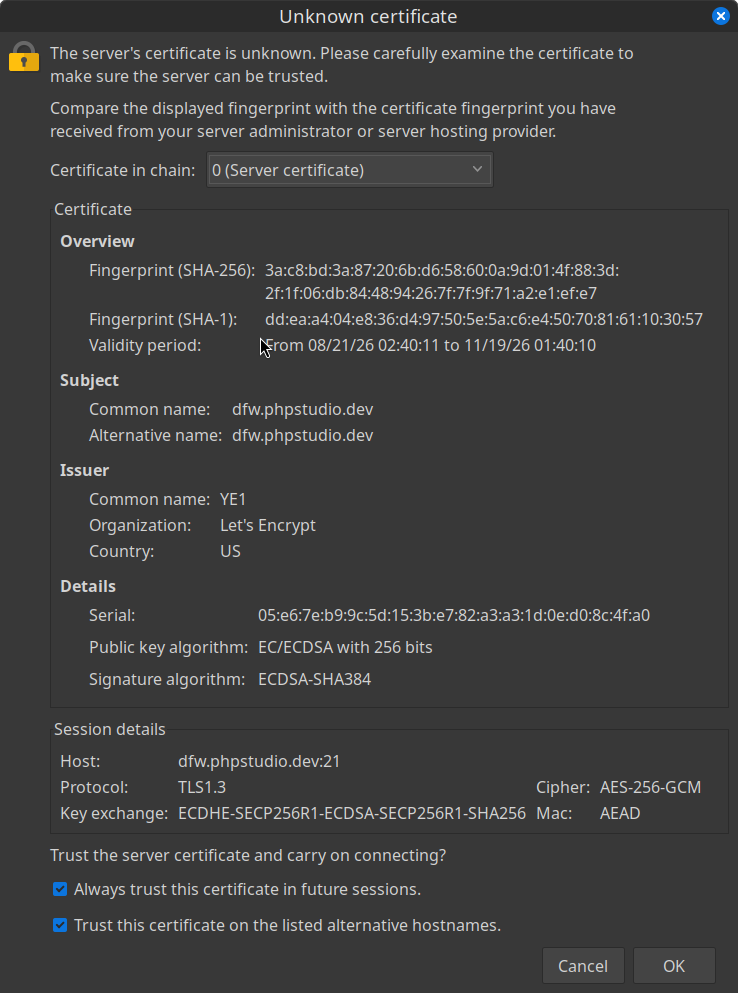
A certificate helps confirm that the server you reached is the server you meant to reach. FileZilla shows this prompt when it has not seen that certificate before, so it gives you a chance to inspect it instead of trusting it silently.
For a connection you expect, check that the host name and certificate details match the server information you were given. If they do, choose to trust it for future sessions. FileZilla saves the certificate fingerprint, so it normally will not ask again unless the certificate changes.
FTPS uses a control connection for commands and separate data connections for file transfers. Both can be encrypted, but FileZilla and the server may not agree on whether a later connection should reuse the first TLS session.
Some servers perform a fresh TLS handshake for each data connection instead. That can produce this warning even though the connection remains encrypted. When you are connecting to the server you expect, it is generally a compatibility message rather than a sign that FileZilla is sending files in plain text.
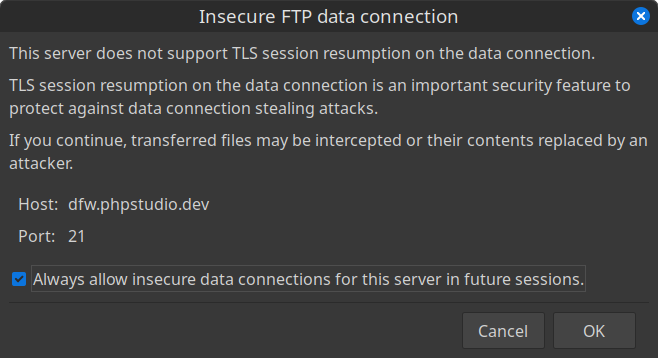
These prompts are useful reminders to pay attention, especially the first time you connect. Once you have confirmed the server identity, FileZilla can remember that choice and your future transfers should be uneventful.
Make sure the hostname is the one you were given before trusting anything.
These warnings concern the TLS setup; they do not by themselves mean encryption is off.
An unexpected certificate change is a good reason to ask your hosting provider before proceeding.